
This guide provides troubleshooting tips to help you log into your school's Parent Portal or Parent App. It's recommended you try these steps before contacting your school for assistance.
Please note: Only parents with a guardian profile added to the school's site can use the Parent App, and school staff and teachers cannot access it.
1. Verify Your Login Information
- Make sure you are using your email address as your username.
2. Password Issues
Forgot your password?
- Click the Forgot your password? link on your login page to receive a password reset email.
- If the email does not arrive, contact your school to request one. They can manually send you a reset password email or set a new password that you can change after you log in.
Haven't received a login or password reset email?
- First, confirm with your school that the email address you are using is the one they have on file for your account. They can edit it if it is incorrect.
- If your email address is correct on their side but you still aren't receiving the email, ask your school to manually send you a reset email or set a new password for you.
- If your email address is used on more than one school site, you may not be able to get a reset password email for the most current site yourself. To prevent future issues, contact the old school to have them remove or change the email address from that account
Expired Login Link
- If you are trying to log in using a link from an email, be aware that the link will not work if it was sent more than 96 hours ago
- To fix this, you will need to have a new reset link sent to you.
3. Common Error Messages
"You don't have permissions to access Arbor" (or a suspended account message)
This means your account is suspended and you will not be able to log in. You must contact your school to ask them to enable your account.
Blank Screen or an error message
This can happen if your profile has not been linked to any students. Ask your school to check the following:
- What type of guardian you have been recorded as; only those marked as Primary Guardians can access the Parent App or Portal.
- That they have correctly linked you to your children.
- That they have not accidentally created duplicate profiles using your email address.
"Email or password incorrect" (in the Parent App)
- Try logging in on a web browser at login.arbor.sc.
- If the web login works but the app doesn't, ensure you are using the latest version of the app. If you don't see the version number on the login screen, you have an old version and need to download the latest one.
- If you can't log in via the web browser, try resetting your password.
"You are not logged in" or "Multiple users found with the same email address. Please contact the school office to resolve the issue." error messages
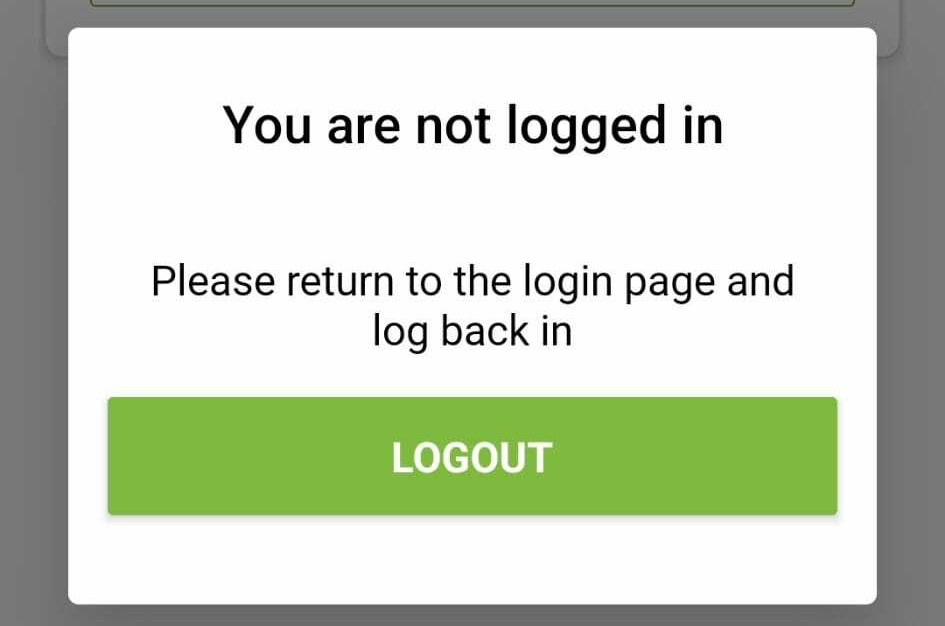
If you see either of these error messages when signing in via the Parent App, it is because your email address is registered on more than one user profile in the school's system. When this happens, the app is unable to identify which account to log in to, and access is blocked entirely.
You can share this guidance with the school to assist them: Check for duplicate email addresses to stop users from getting sign in errors or signing into the wrong account
In the meantime, you are still able to sign into Arbor using the Parent Portal. Just visit your school's specific link or head to https://login.arbor.sc/ and sign in from there.
A blank or empty error box appears when a new password is requested and/or when using the First Time Logging In option
This happens when Arbor's hourly limit on the number of password resets is reached. Because the First Time Logging In functionality uses the same background process as a password reset, using this option counts towards the same limit.
After an hour, the limit is removed, and the error will not reappear if another reset is attempted
If you requested a password reset multiple times because you were unable to locate your password reset email, please double-check your Junk and Spam folders. And, failing that, please contact the school to ask them to check that your email address has been recorded correctly on your profile, and refer them to this guidance: Email isn't being sent, or is sent to the wrong email address
4. Other Login Issues
- The Parent Portal is not enabled: You won't be able to log in if your school has not yet enabled the Parent Portal. Contact your school to ask them to turn it on.
-
Logged into the wrong account: This means your school has mistakenly used your email address on another guardian, student, or staff member's profile. Contact your school to have them fix this. They will also need to check for duplicate guardian profiles.
-
Can't see your child or switch between children:
- Make sure you have agreed to the Terms & Conditions the first time you accessed the app or portal.
- Make sure you have agreed to the Terms & Conditions the first time you accessed the app or portal.
- Make sure you have correctly entered your child's date of birth.
5. Still can't log in?
If none of these steps work, you will need to contact your school for help.
Comments
Article is closed for comments.