
This article guides you through enabling card payments on Customer Account Types once you have completed the identity verification steps.
This guide is the ninth in a series. The guides in this series are:
- Introduction
- Verifying school details
- Uploading school documents
- Entering Director details
- Entering Representative details
- Adding a bank account for payouts
- Confirming and troubleshooting verification
- Enabling Customer Account Types
- FAQs and further reading
Now that you have completed the verification part of the Card Payment setup, you can start customising where and when card payments can be used. Begin this process by selecting the account types that can be used with card payments and specifying where the funds are paid for each account type. Next, ask someone to verify your selections.
Top Tip: Unsure about where to start with payments in Arbor, or need assistance with your setup? Why not try our In-App Payments Help Guide!
Enabling card payments on an account type
Important note: Until the bank account for payouts is verified for a Customer Account Type, card payments will not be possible for Customer Accounts with this type (even if “Accept card payments” is selected).
Arbor offers default customer account types for Clubs, Meals, and Trips. You can add more types of top-up accounts, such as wraparound care clubs or the school shop (with our latest Perform package). For setup instructions, please refer to our article here.
To enable card payments on a customer account type:
- Go to School > Payments > Setup > Customer Account Types
- Click on the Customer Account Type you want to activate (for example, Meals)
- On the slide-over, click the orange Edit button
- Tick the Accept card payments box
- Select the bank you wish for payouts related to this account type to go to:
- You can only set one account for payout per Account Type
- You can change the bank account later
- Different account types can have different payout bank accounts. For example, you can have Meal payments routed to your catering provider and club contributions straight to your school's account.
- If you do not see the payout account you need, check that the account has been created and add the payout account if required.
- Press Save Changes
Changes to the bank account for payouts require verification from another staff member who has the Finance: Administer permission. This is because the account type cannot be verified by the same person who requests the verification, and adding a payout bank account for the first time requires verification.
So, you will need to ask someone to do this for you.
Note: Arbor does not send notifications to inform staff that they need to verify a Customer Account Type, so we recommend contacting them directly.
Other changes to Customer Account Types (like the description or name) do not require verification.
Verifying Customer Account Type details
To make sure the correct bank account is selected for a Customer Account Type, changes to the Bank account for payouts field must be verified by a second member of staff. This is done to prevent errors (e.g when a bank account is added with typos).
To verify a payout bank account once someone has requested verification, go to School > Payments > Setup > Customer Account Types. Here you can see all Customer Account Types that have unverified bank accounts for payouts.
Click on the chosen customer account type that requires verification, and verify the bank account details for payouts provided. You can click the Edit button if you need to make any changes. Click Mark as verified to confirm the verification.
Verification can only be done by a member of staff who has the Finance: Administer permission, and this can not be the person who requested the verification. You can view the list of school staff who can verify this change in a red banner at the top of the slide-over after clicking on a Customer Account Type.
You can disable card payments for a Customer Account Type at any point.
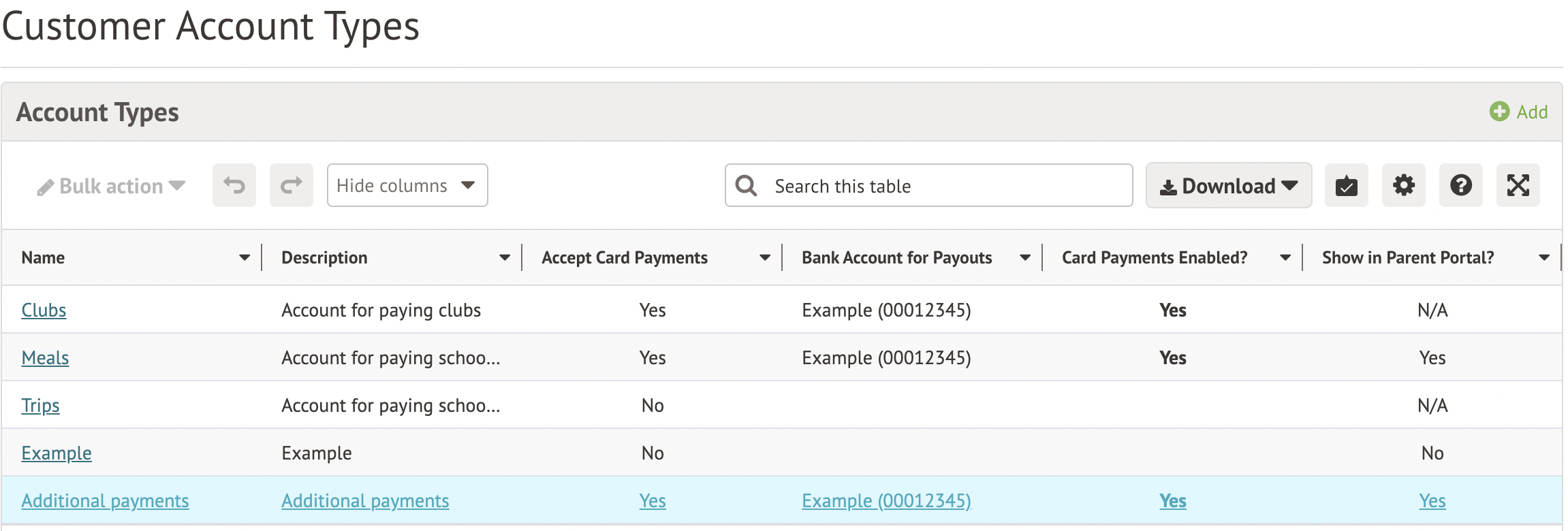 Changing the bank account for a customer account type
Changing the bank account for a customer account type can only be done by an Arbor Admin. If you need to change the bank account that a customer account type is paying into, you would need to add the new bank account if it is not on your site already, by following these steps:
- Go to School > Payments > Setup.
- Click "Add bank accounts for card payments" on the Initial Setup page.
- Click the +Add button on the right side of the page, enter the bank details, and then click Add bank account for payouts.
Once you have completed this step, please contact Arbor Support, quoting code 1030, if you are supported by Arbor or your Support Partner, to request that your bank account be updated. After the change has been made, Arbor will then automatically reroute any existing payouts to the updated bank account.
Deleting a customer account type
It is not possible to delete a customer account type on your own. If you need a customer account type to be deleted, please contact the Arbor Support Team quoting code 1025 if you are supported by Arbor, or your Support Partner if you are not supported by Arbor.
Now that you have enabled card payments for the relevant account types, you have completed your card payments setup! For further information, please refer to the last guide in this series: Card Payments Setup - 10. FAQs and further reading
Comments
Please sign in to leave a comment.