
This guide is an introduction to our series on the Staff Profile. This guide explains what a staff profile is and how to navigate it.
This guide is the first in a series. The guides in this series are:
Permissions
- Staff Profile: All Staff: View Basic Details - Let's you find and view the basic details on a staff profile. Other details, like contract information, require specific permissions.
If you don't have the right permission(s), you can ask your office team to assign it to you.
What is a staff profile?
The Staff Profile consolidates all relevant information about a staff member, including attendance records, contact details, qualifications, and job roles.
It enables easy navigation through various sections, including identity, contact information, business roles, and medical requirements. Users can manage communications, view absences, and access teaching-related data, ensuring comprehensive management of staff information.
The Staff Profile provides a central location for all information relating to a single member of staff, including, but not limited to, attendance, contact details and contract information. The staff profile card, near the top of the page, contains the staff member’s role and the date their profile was added to Arbor.
Finding Staff Profiles
There are many ways to navigate to staff profiles, including clicking on staff member names on various pages with Arbor or by using their staff ID, but the two easiest ways are to:
- Use the Global Search in the top right corner of any Arbor page to find their profile - this is the best option for staff who do not have a current or ongoing business role
- Use the School > All Staff > Browse Staff page. Change the filter at the top of the page to include or exclude past staff members.
Navigating a staff profile
Filtering and navigating the main page
Scroll down the page to move between sections. For faster navigation and the option to jump to a specific section on the main page, filter the Staff profile by clicking the View drop-down and selecting a section from the list.
Using the left-hand menu
To navigate to pages outside the main profile page, like Contracts and Payments, use the left-hand menu. The next guides in this series take you through the functionality of those pages.
The right-hand side of the staff profile
If next of kin are recorded for a staff member, their contact details appear in the top right corner of the profile, under the 'Emergency Contacts' heading. Click on the Emergency Contact to see further details on a slide-over.
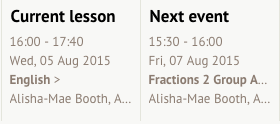
Previous, current and next lesson/events are displayed in the top right corner of the staff profile. Click on an event/lesson to be directed to the particular event's overview.
If two events are timetabled to begin at the same time, we'll display the most important one based on this hierarchy:
- Internal exclusion
- Detention
- Trip
- Intervention
- Club
- Examination
- Lesson
- Meal sitting
- Absence
- School events
Download the staff members' timetable by clicking on Download/Print and selecting Download Printable Timetable.
Send an email or SMS to the staff member by clicking the orange Communications button.
Click the Next and Previous buttons to cycle through staff profiles. Go to the Browse Staff page and apply a filter, such as Business Role if needed. Select a staff member, then cycle through staff profiles with the same filter applied.
This concludes our introduction to the staff profile. The following guide in this series is: Staff Profile - Main Page
Comments
Article is closed for comments.